The following describes how to:
- Confirm a non-confirmed order.
- Delete confirmed and non-confirmed orders.
- Transfer confirmed Internet sales orders into IBS Distribution.
Confirmed orders are those orders that were confirmed (i.e. by performing the Close order action) by the Internet user.
- Click Order transfer.
- You access the Confirmed temporary sales orders window:
- Click Delete to delete the selected confirmed order(s).
- Toggle Unconfirmed/Confirmed to view the unconfirmed/confirmed temporary orders
- Click Transfer to transfer the selected confirmed order(s) into IBS Distribution.
- Click Transfer order matching current search results. You can first narrow down the orders you want to transfer, by completing the search fields (Number, User, User group and Customer) on the bottom of the window. After completing the search criteria you MUST click Search. When the orders matching the search criteria are shown, you can click this Transfer order matching current search results button.
Note: Even non-displayed orders, matching the search criteria, will be transferred.
Panel image
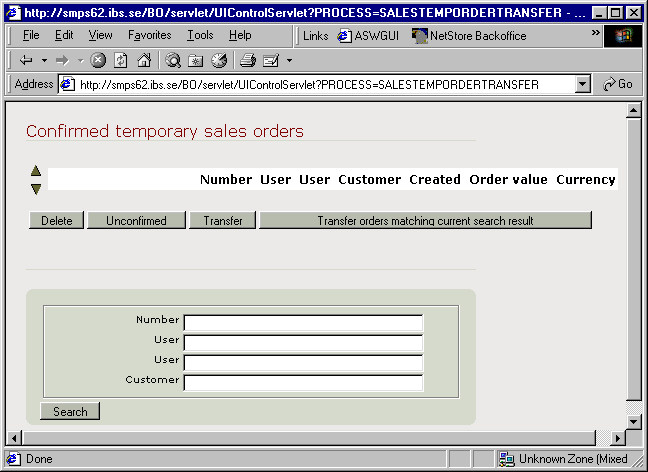
The window is divided into several sections. In the bottom part of the window you can enter search criteria to search for the type of orders with which to work.
You have the following options:
View unconfirmed orders
- Click the Unconfirmed button to switch to the unconfirmed view.
- You access the Unconfirmed temporary sales orders window:
- Check the applicable order(s) and click the Delete button to delete the order(s). A window will prompt asking you to confirm the deletion.
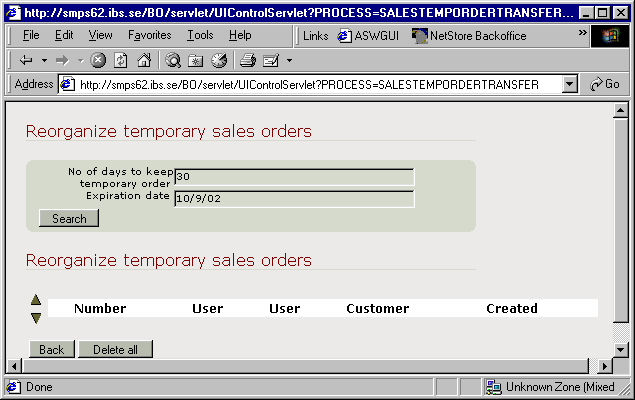
- Click the Delete expired button to delete all expired temporary orders. You access the Reorganise temporary sales orders window:
Panel image
Panel image
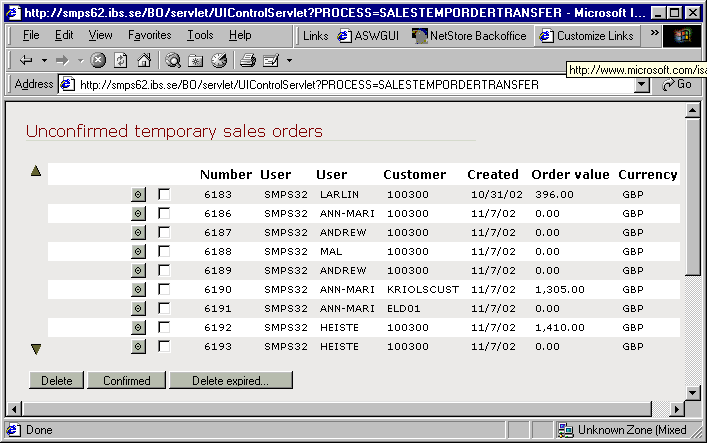
From this window you can toggle back to view the Confirmed orders, by clicking the Confirmed button. You also have the possibility to do any of the following:
All Unconfirmed temporary sales orders that have exceeded the date specified in the No of days to keep temporary order field (defined on Application level), will be listed. Click Delete all.